Create a 3D space with your Moodle content
Browse the Moodle library synced to your district, drag pages, SCORM, H5P, and quizzes directly into the 3D editor, and publish lessons your students can access seamlessly.
Welcome! With Moodle connected to your Metasteps district, every iframe-compatible activity from your synced courses is one drag away from being inside a 3D space. This guide walks you through finding content in the Moodle tab, placing it in the 3D editor, and what students will see when they enter your space. Let's dive in.
1. Browse the Moodle tab
The Moodle tab on your district page surfaces every Moodle resource your district owner has synced. Open it any time to see what's available.
- Open your district page: From the Metasteps dashboard, navigate to your district. Tabs appear under the header: Spaces, Members, and Moodle.
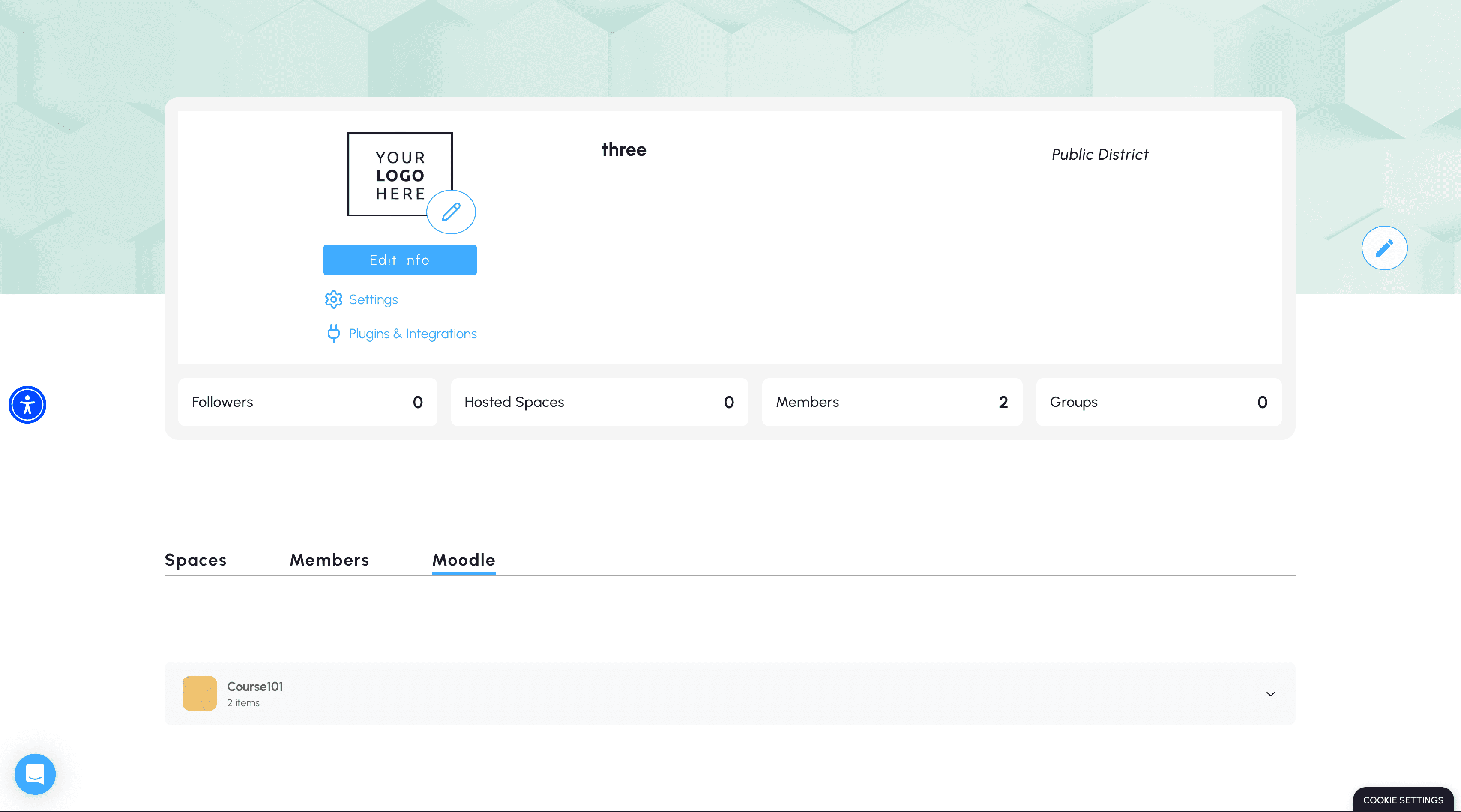
The Moodle tab on your district page surfaces every synced course.
- Pick a course: Each synced course appears as a card with its title and an item count.
- Expand to see activities: Click a course to see its Chapters and individual activities. Pages, files, URLs, H5P, SCORM packages, and quizzes are all listed with their type label. Forums, chats, and workshops are skipped because they don't render inside an iframe.
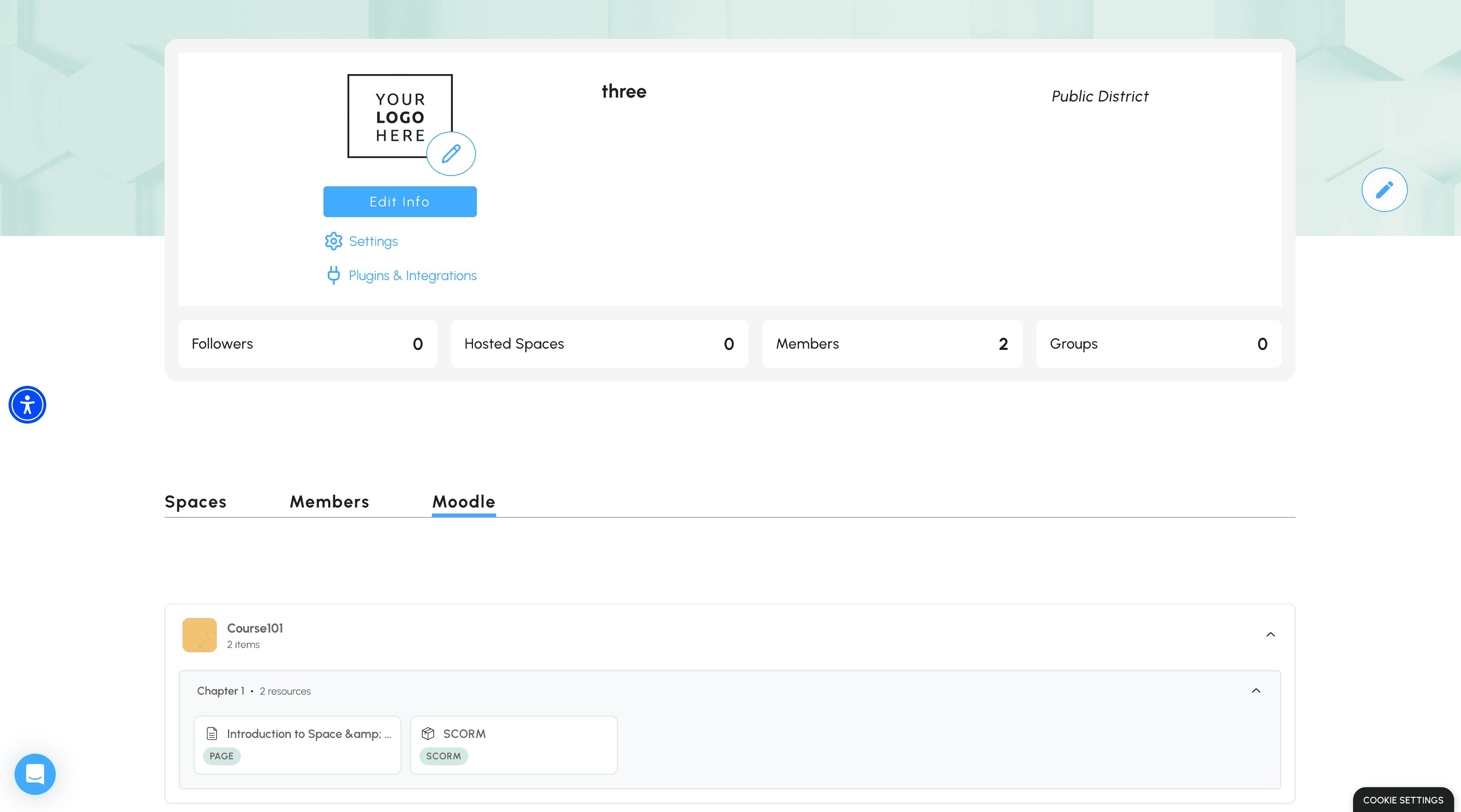
Expand a course to see every section and activity.
Important Note: If a resource you expected is missing entirely, ask your district owner to click Resync on the Moodle integration panel. New activities don't appear in the library until that sync runs.
2. Add Moodle content to a 3D space
With the Moodle tab populated, placing an activity in a 3D scene takes about a minute.
- Open a 3D space: Open an existing 3D space (or create a new one: see Create a 3D space) and enter the editor.
- Open Step 3 / Add Content: In the wizard at the top right, click 3 Add Content. The right-hand panel switches to show two tabs: Multimedia Objects and Interactive Tools.
- Switch to Interactive Tools: Click Interactive Tools. You'll see five categories: Portals, Info Points, HyperTexts, Web Views, and Moodle.
- Expand Moodle: Your synced courses appear, organised exactly as in the Moodle tab: courses contain chapters, chapters contain individual activities.
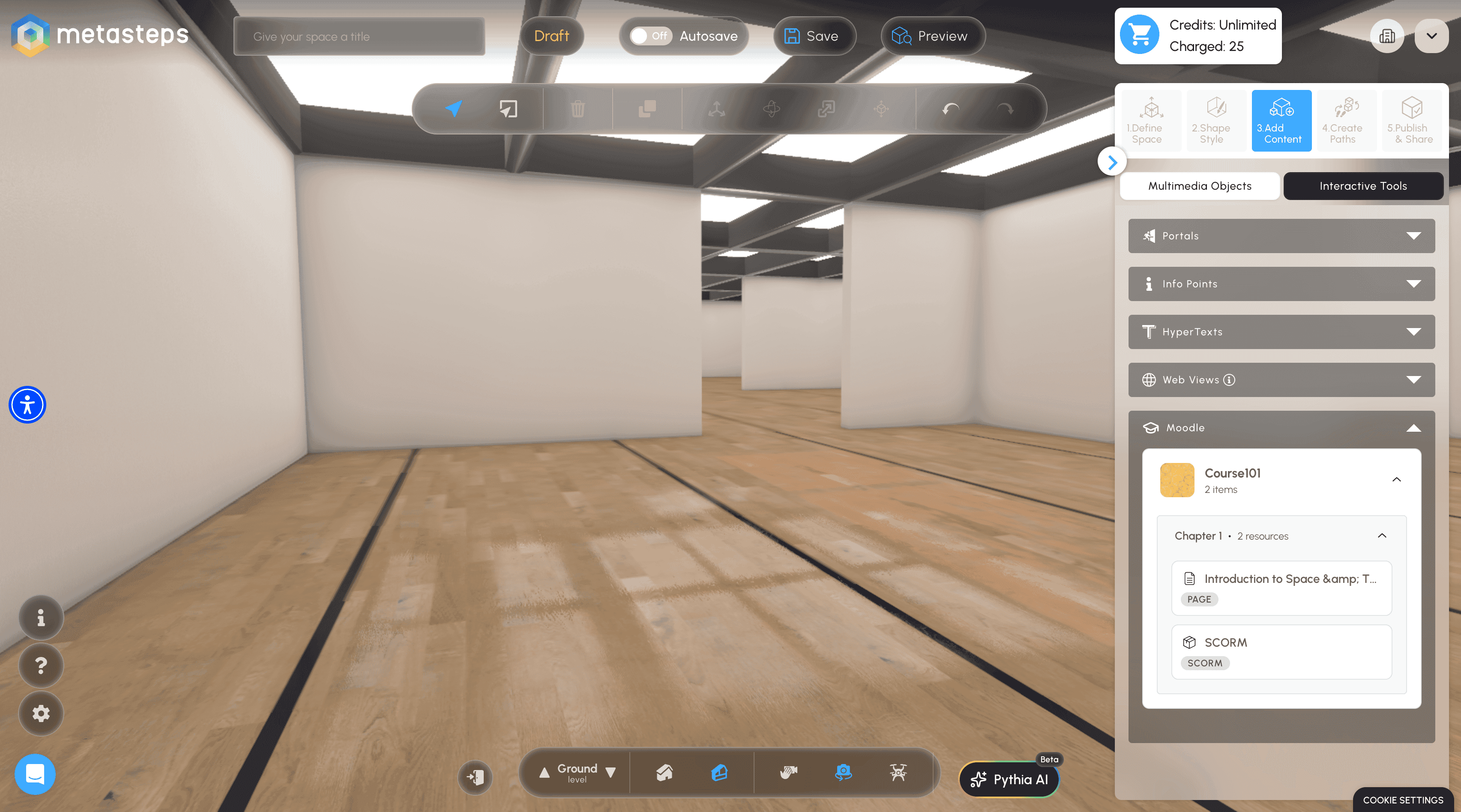
Step 3 → Add Content → Interactive Tools → Moodle. Your synced courses are right where you expect them to be.
- Drag the activity into the scene: Drag any resource (Page, SCORM, H5P, quiz) out of the Moodle picker and onto a wall, floor, or any surface in your 3D space. Metasteps creates a panel pre-wired to that Moodle activity.
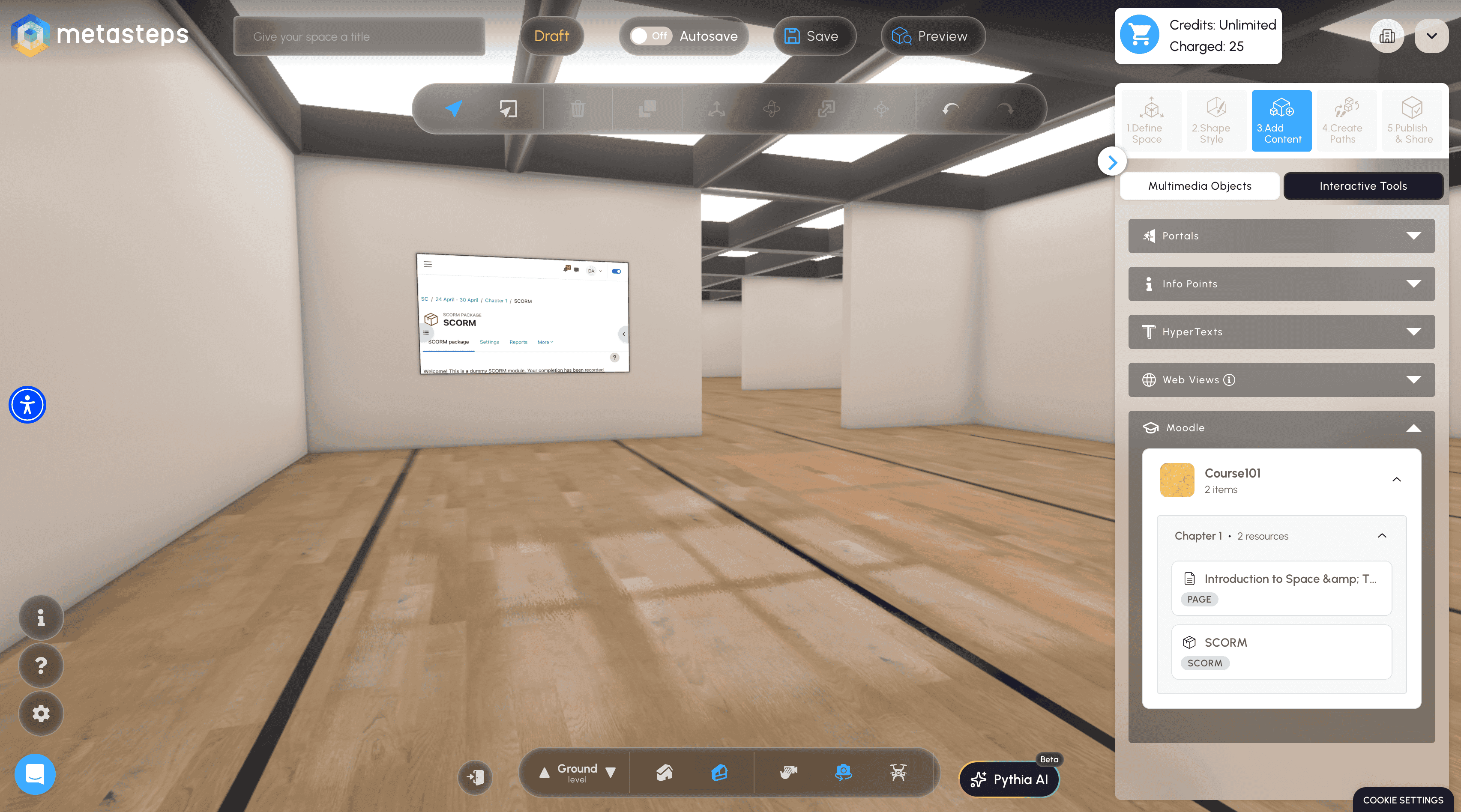
A SCORM activity dropped onto a wall.
- Click the panel to fine-tune: Click any placed Moodle panel to open its transform settings on the left side of the editor. Adjust Position (X, Y, Z), Rotation (X, Y, Z), and Scale (X, Y, Z) to fit the panel into the scene exactly where you want it. Set Clickable to control whether visitors can interact with it directly, and Zoom to bring focus to the content when they click.
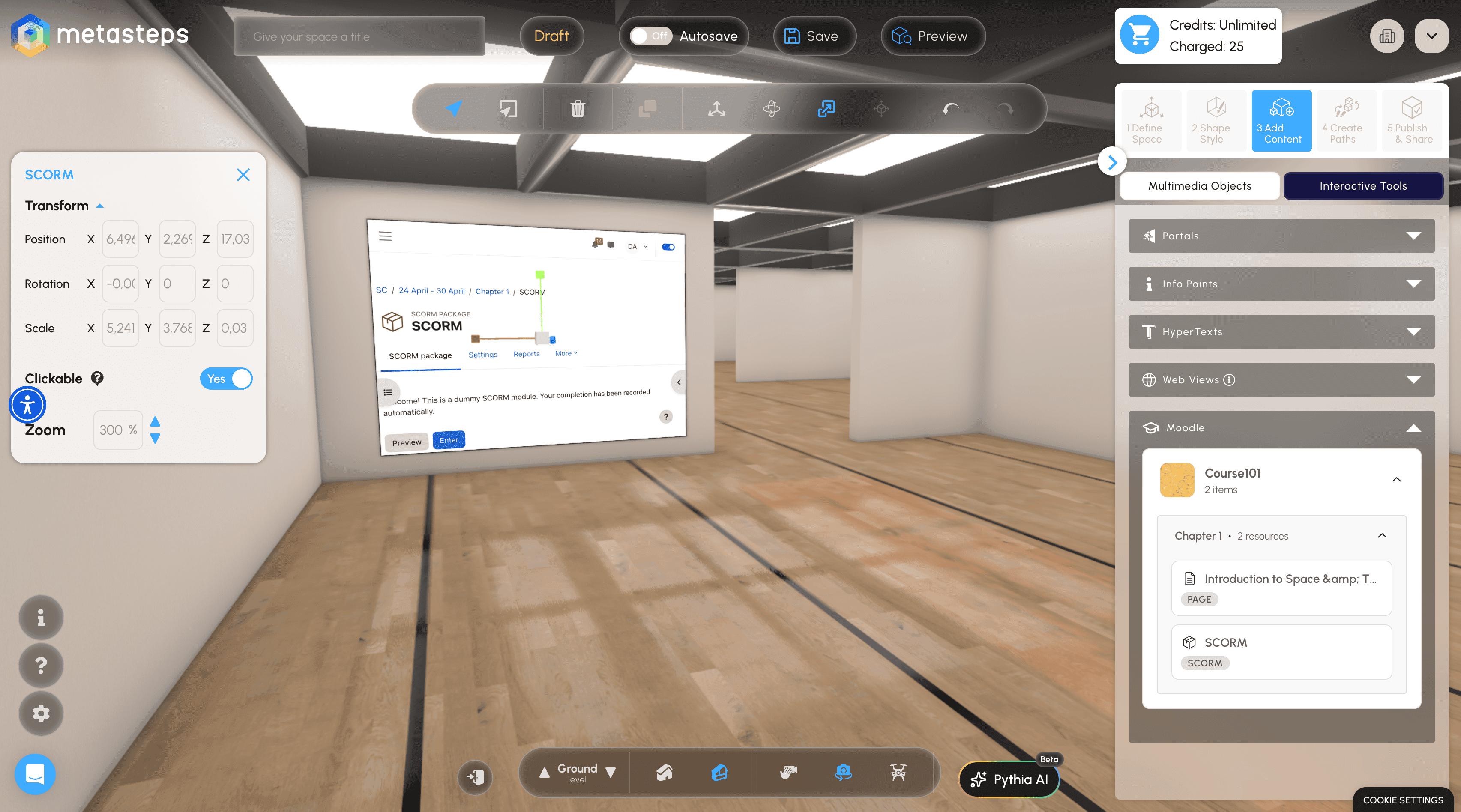
Click any placed panel to adjust its position, scale, and interactivity.
Important Note: As a rule of thumb, scale text-heavy content to about 2 metres wide so a student standing at a normal viewing distance can read body text comfortably.
- Repeat or publish: Drop additional activities to build sequences (page → quiz), stations (one activity per desk), or branching paths. When the space is ready, publish it from the wizard's final step.
Important Note: Each Moodle panel keeps a live link to its source activity, not a copy. If a teacher updates the quiz in Moodle, students automatically see the new version on their next visit, no re-publishing needed.
3. Preview as a visitor
Once your space is published, every visitor — students, classmates, anyone with the link — sees the same scene with the Moodle content rendered live.
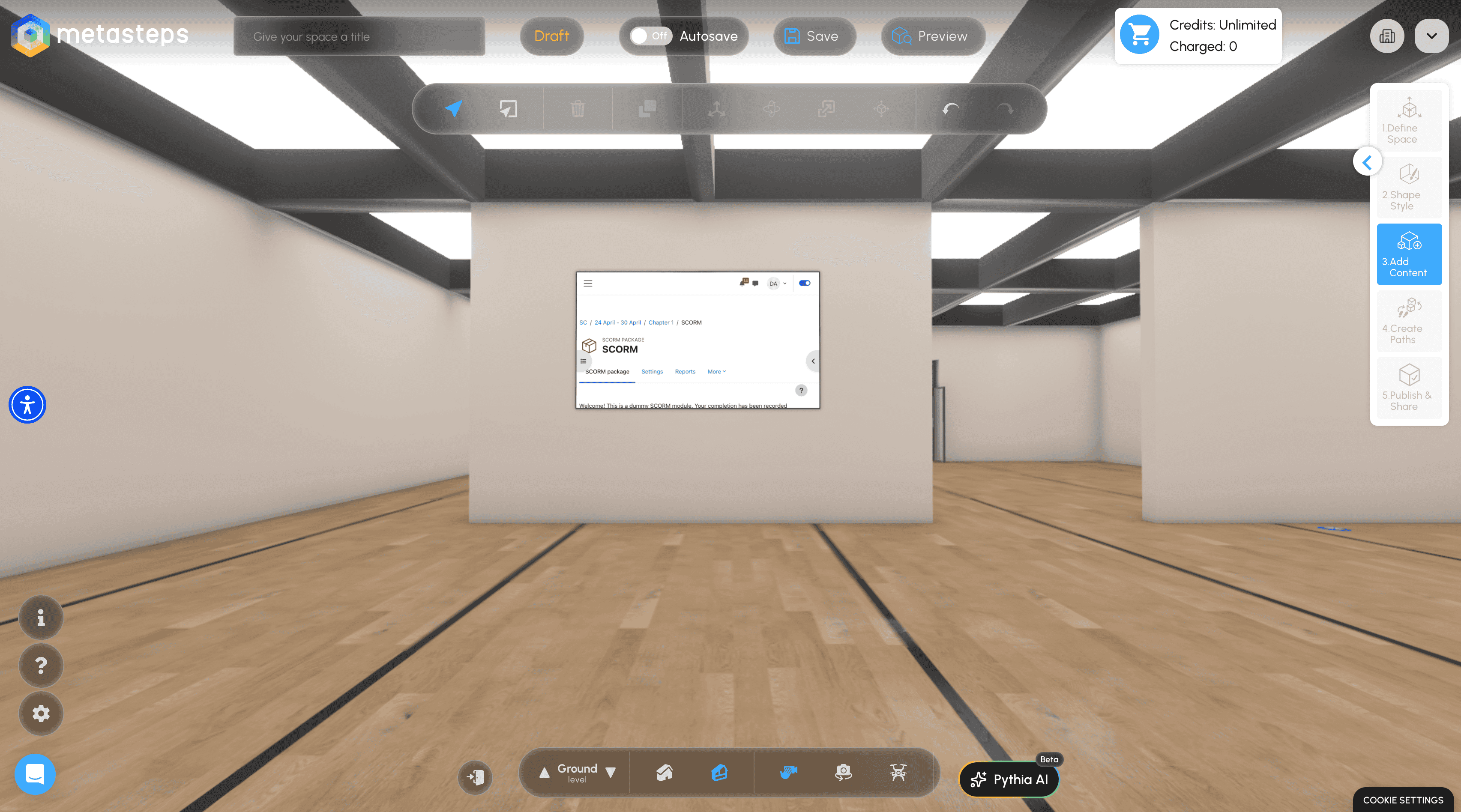
A visitor's view of your published space. Moodle content appears as part of the scene.
- The student happy path: When a student opens the space URL, Metasteps performs one silent SSO handshake with Moodle in the background, and every Moodle panel loads with their authenticated session. They never see a login screen. Activity completion, attempts, and grades flow back to Moodle as if they had opened it directly.
- Session refresh: Metasteps silently refreshes the Moodle session every 90 minutes while the student is in the space, so they almost never time out unexpectedly.
- When SSO is not available: If your district's Moodle doesn't have the auth_userkey plugin installed, students will see Moodle's login form inside the panel the first time. Once signed in, the session persists for the rest of the visit.
When access fails
Five realistic failure modes, each with a specific message inside the Moodle panel:
- "You cannot access this course" — the student isn't enrolled in the source Moodle course. Enrol them in Moodle as usual.
- A Moodle login screen — no matching Moodle account for their email, or the session expired. Confirm Metasteps and Moodle emails match.
- "The requested page does not exist" — the activity was deleted from Moodle after the space was published. Open the editor, find the panel, and replace or remove it.
- A blank panel — frame embedding is blocked by Moodle. Ask your district owner to escalate to the Moodle admin.
- "SSO failed: no Moodle account found" — the student has a Metasteps account but no Moodle account, or their emails don't match. Create a Moodle account with the matching email, or fix the email mismatch.
Important Note: Pick a representative student account, walk through the space yourself, and you'll surface 90% of issues before students hit them. Schools where every student is enrolled in the source courses and uses consistent emails rarely see any of these problems.
Common questions
- Can I edit Moodle content from inside Metasteps? No. Metasteps is read-only against Moodle. Edit quizzes and pages in Moodle as usual; changes appear automatically on each student's next visit.
- What happens to grades and completion tracking? Recorded in Moodle, not in Metasteps. The 3D space is a window into Moodle, so attempts, grades, and activity completion stay in your gradebook where teachers expect them.
- Can two students see different content in the same space? Yes, each panel loads with the individual student's Moodle session, so quiz randomisation and conditional access rules apply normally.
- A student is showing a login screen, what do I check first? Confirm their Metasteps and Moodle emails are identical, that they're enrolled in the source course, and that auth_userkey is installed on your Moodle (your district owner can verify).
- What about new content the teacher just added? New activities don't appear in the library until your district owner runs Resync. A daily background re-sync also picks them up.
- Can I duplicate a Moodle panel? Yes, copy/paste works the same as any other 3D asset. The new panel keeps the same live link.
Ready to Move On?
You're set. For more on building immersive scenes around your Moodle content, explore Create a 3D space and Design a 3D space. Keep experimenting, have fun, and let your creativity shine!